How to compress a PDF on a Mac
Email limits are usually 20–25 MB, and scanned PDFs blow past that fast. Here is how to shrink a PDF on macOS without sending it to a website.
Option 1: Preview (built in)
- Open the PDF in Preview.
- Choose File › Export.
- Set Quartz Filter to Reduce File Size and save.
It is free, but there is only one setting. It often turns text and diagrams blurry, and it sometimes makes already-small files bigger.
Option 2: Online compressors
They work, but your file is uploaded to someone else’s server. That is a bad trade for contracts, IDs, tax returns, medical records or bank statements. Most also limit file size or the number of files per day.
Option 3: Sheaf (fastest, stays on your Mac)
- Start dragging the PDF from Finder, Mail or your desktop.
- Pause for a moment. A circle of actions opens around your cursor.
- Move toward Compress and let go.
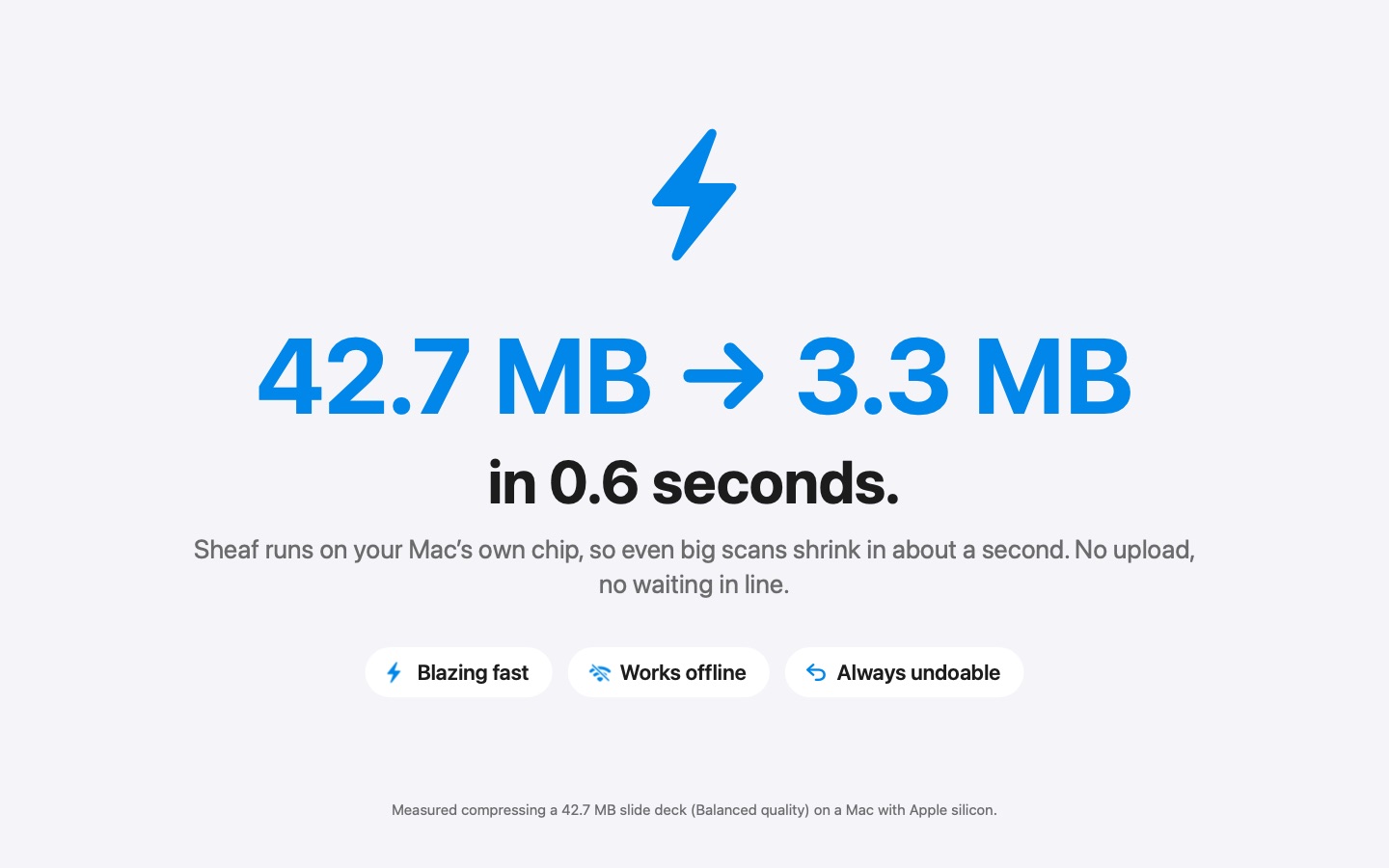
The smaller file appears right there, with the result, for example “77.8 MB → 9.6 MB”, ready to drag into Mail. Sheaf keeps text sharp and compresses images and scans the most. On Apple silicon, a 42.7 MB slide deck becomes 3.3 MB in about 0.6 seconds. The original is never changed, and you can undo.
Need a file under a specific size? Sheaf can also split a PDF into email-sized parts.
Free 7-day trial · then one purchase, no subscription
Questions
Does compressing a PDF reduce quality?
Some. Good compressors shrink images and scans while keeping text as sharp vector text. Sheaf’s Balanced setting is made for email; you can choose a stronger or lighter setting.
Is it safe to compress PDFs online?
Online tools upload your document to their servers. For private documents, use an app that compresses on your Mac, like Preview or Sheaf.
How do I make a PDF small enough to email?
Compress it first. If it is still too big, split it into email-sized parts. Sheaf does both from the same drag.